
Overview
The download tooltip allows you to clearly label a link as a document download so the customer knows what to expect. It provides essential information about the file such as filetype and size (large files may not want to be downloaded on mobile connections).
This component should be used whenever a document needs to be added to a page.
If there are a large amount of documents to be added to a page, consider using a list of links to avoid making the page too long. When documents are presented as normal text links you should always include the file type in brackets at the end of the link. For example, Document name (PDF)
How it works
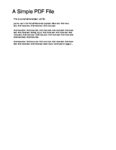
There are two types of download components, one with a preview image of the downloaded file and the other with a generic file icon. A preview image of the document should be used whenever possible to show the customer what to expect.
PDF files generate a preview by default, for all other file types or if you cannot access the PDF preview image a screenshot of the front page has the same effect. If it is not possible to create a preview image then using the generic image is allowed.